Importing Blockchain user guide
Created by: KeeJef
Importing the Blockchain to Monero GUI wallet (Windows)
Step 1
Download the Current bootstrap from https://downloads.getmonero.org/blockchain.raw, you can skip this step if you are importing the Blockchain from another source.
Step 2
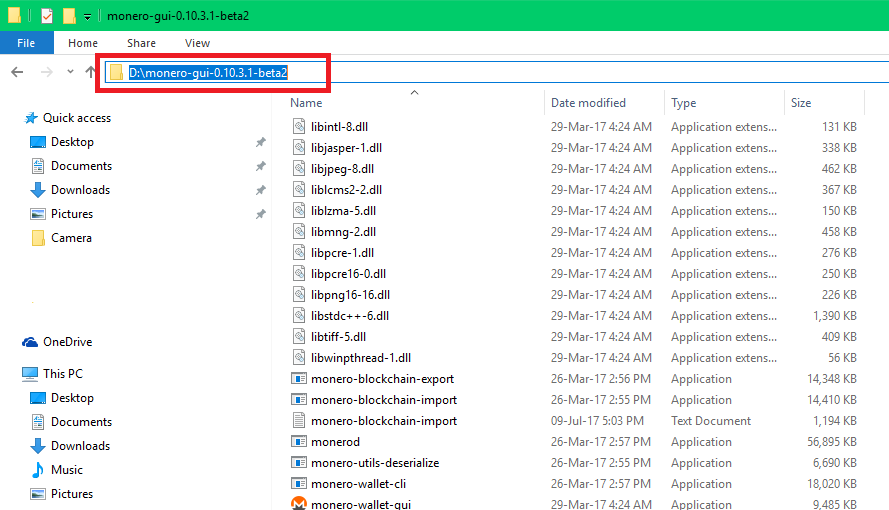
Find the Path of your Monero wallet (the folder where you extracted your wallet) for example mine is.
D:\monero-gui-0.10.3.1-beta2
Yours might be different depending on where you decided to download your wallet and what version of the Monero wallet you have.
Step 3
Find the path of your downloaded Blockchain for example mine was.
C:\Users\KeeJef\Downloads\blockchain.raw
Yours might be different depending on where you downloaded the Blockchain to.
Step 4
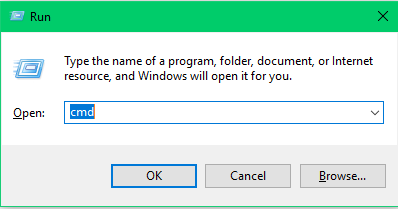
Open a Command Prompt window. You can do this by pressing the Windows key + R, and then typing in the popup box CMD
Step 5
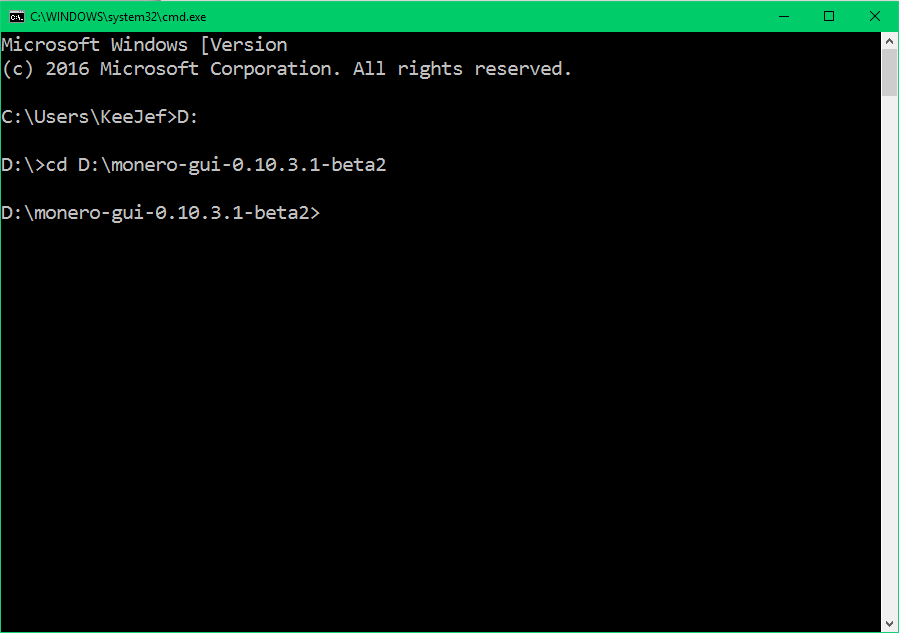
Now you need to navigate using the CMD window to the path of your Monero wallet. You can do this by typing.
cd THE PATH OF YOUR MONERO WALLET HERE
It should look something like.
cd D:\monero-gui-0.10.3.1-beta2
If for some reason your Monero wallet is on another drive you can use DriveLetter: for example if your Monero wallet was on your D drive then before using the cd command you would do D:
Step 6
Now type in your command prompt window.
monero-blockchain-import --verify 1 --input-file YOUR BLOCKCHAIN FILE PATH HERE
For example I would type.
monero-blockchain-import --verify 1 --input-file C:\Users\KeeJef\Downloads\blockchain.raw
If you downloaded the Blockchain from a trusted, reputable source you may set verify 0 this will reduce the amount of time to sync the Blockchain.
Step 7
After the the Blockchain has finished syncing up you can open your monero wallet normally. Your downloaded blockchain.raw can be deleted.
Author: Kee Jefferys